Having a slow computer is not something most users fancy, but that is what most of us end up with after prolonged usage despite having the latest hardware. Understandably, there are also a few of us who are trapped with a low-end PC and are forced to get as much out of it as possible. This article caters to both these type of users as it not only explains how to make your computer as fast as it was when new but also how to reduce the footprint of your system to utilize your PC's current system resources in the best possible way.
If your computer is infected, the first thing you need to do is deep scan your entire hard drive to remove all traces of the virus. Also, scan your secondary storage devices to make sure that they are clean as well. Additionally, make sure to follow best security practices to avoid getting infected in the future.

1) Most resource intensive antivirus software can be replaced with the lightweight Microsoft Security Essentials.
2) Microsoft Office can be replaced with OpenOffice, an open source alternative that also has loads of amazing additions.
3) Adobe Reader can be replaced with the free Foxit Reader.
4) The newer versions of Internet Explorer are pretty fast. However, if you have been using an older version, it is time to upgrade IE or replace it with either Mozilla Firefox or Google Chrome. This will also give you faster internet speeds.
To disable unnecessary startup programs, type msconfig in the search bar in Start menu (in Windows 7 and Windows Vista) and on the Start screen in Windows 8 and 8.1. On Windows XP, type this in the Run dialog box. This will start the System Configuration utility. Click on the Startup tab and disable all the applications that you think are not essential on your computer's startup. Restart your computer to see the changes. Keep in mind to not disable your security products as that will make your computer more susceptible to getting infected.
 This is assuming that you continuously use your computer for long periods of time. Each time when you close a running program in Windows. it frees the memory that the program was occupying. However, it may so happen that some parts of the memory do not get freed which results in less system resources available to you to use which ultimately results in a slower PC. When you restart your computer, these occupied spaces in the memory get freed. Although, this memory issue has been somewhat fixed in recent versions of Windows, it still is a good idea to reboot your computer at least once a day.
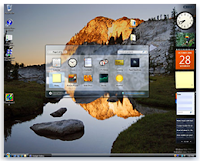 The visual effects that make your computer look beautiful also slow it down considerably. So, if you want to get the best performance out of your computer, you should disable all these visual effects. To disable these visual effects:-
1) Press Windows Key+R to launch the Run dialog box.
2) Execute sysdm.cpl.
3) Go to the Advanced tab in the following Window and click on Settings in the Performance section.
4) Then encircle Adjust for best performance. If you want to use visual styles and themes, check it (located at the very end of the list).
5) Click on Apply to apply the changes.
Disabling these visual effects could lead to a considerable improvement in your system's performance especially if you are on Windows 7 or Windows Vista and using the Aero interface without a graphic card.
To solve this issue, use any free Registry cleaner to remove useless entries. Depending upon the number of entries in your Registry and its size, you might see a significant increase in your computer's performance.
 The Windows search indexing service scans all the files and folders on your system and stores information about them in a database to make searches faster. Naturally, this results in consumption of resources. If you don't use Windows Search often or are willing to trade faster searches for a faster computer (as you should), disable the indexing service. To disable it, executeservices.msc in the Run dialog box. In the work area on the right side, locate Windows Search service and double click on it. In the followingProperties dialog box, select Disabled from the Startup type dropdown and click OK. Restart your computer. Your searches will be slow but your computer will be faster than ever.
To prevent your computer from overheating, make sure that the cooling fan works properly and that there is no dust clogging the air vents as it will prevent air flow which will result in poor cooling. Clean your computer's case with a light brush and place it somewhere where it can be effectively cooled by air. If you use a laptop, a cooling pad might be of help.

This is what defragmentation corrects. When you defragment a hard drive, the scattered pieces of a file are put together and stored on the hard disk in continuous cells (assuming a hard disk to be made up of a large number of cells with each cell representing a particular storage space).
To defragment your hard drive, you can use the in-built Windows Disk Defragmenter utility. It can be searched on the Start Screen in Windows 8 & 8.1 and is located at Start>Programs>Accessories>System Tools in older versions of Windows.
Keep in mind that ReadyBoost depends upon the condition of your flash drive and was intended to increase speeds of devices which were short on RAM. If you already have a sufficient amount of RAM, chances are that you might see very little to no improvement in speed by using it.
If you haven't reinstalled Windows in a really long time, it is possible that because of constant use, the system has got bogged down with useless clutter in a way that no amount of tweaking will fix its condition. Then, reinstalling Windows is the only option.
Reinstalling Windows brings about a definite increase in speed but gives you a new PC without all your software and customization. Modifying it according to your needs will take a lot of time though but that is something you must sacrifice for a faster PC.
If you use Windows 8 or Windows 8.1, you can refresh your PC without affecting your installed apps and settings. To refresh your Windows 8 PC, open Update and Recovery by going to Change PC Settings from the Settings button that appears when you move your mouse pointer to the right side of your screen. Under it, click Recovery. Then under Refresh your PC without affecting files, click Get Started.
First thing first. Make sure your PC isn't infected by a virus, worm or other malware
Anyone who has used an infected computer will verify how painfully slow a computer becomes when infected by a virus. More tech savvy users will counter that an infected computer's speed depends upon the type of malware. To be honest, it does. However, based on my personal experience, I can say that while some malware are designed specifically for making computers slow and unresponsive, most malwares tend to decrease a computer's performance.If your computer is infected, the first thing you need to do is deep scan your entire hard drive to remove all traces of the virus. Also, scan your secondary storage devices to make sure that they are clean as well. Additionally, make sure to follow best security practices to avoid getting infected in the future.
Remove unused and unnecessary programs
Now that we are sure that your computer is not slow because of a virus, you need to get rid of all the unnecessary programs that you have installed on your PC. To remove these programs, go to Programs in theControl Panel and uninstall your unnecessary programs one by one. If you are like most Windows users (including me) and are having a tough time figuring out which programs to uninstall as all of them seem important, follow this rule: If you have not used the program in the last month, it probably is unnecessary. It is better to uninstall that program given that you can reinstall it whenever required. It also is a good idea to remove all the useless software that came bundled with your computer. If you want, you can remove unused Windows features as well to further tone down your operating system.Try faster alternatives to your everyday programs
If you use applications that require too much computing power to operate, you are better off replacing them with applications that do the same job as them but faster. Few resource hogging applications that you can replace are:-1) Most resource intensive antivirus software can be replaced with the lightweight Microsoft Security Essentials.
2) Microsoft Office can be replaced with OpenOffice, an open source alternative that also has loads of amazing additions.
3) Adobe Reader can be replaced with the free Foxit Reader.
4) The newer versions of Internet Explorer are pretty fast. However, if you have been using an older version, it is time to upgrade IE or replace it with either Mozilla Firefox or Google Chrome. This will also give you faster internet speeds.
Remove unnecessary startup programs
Startup programs are the programs which start automatically each time a user logs on. Not only do they result in a slow startup, but they also run persistently, until you close them manually, continuously consuming valuable system resources (CPU and RAM) while they are running. So, disabling unnecessary startup items results in both a faster startup and a more responsive computer, as these applications not running continuously means more RAM and CPU will be available for the operations you perform on the computer.To disable unnecessary startup programs, type msconfig in the search bar in Start menu (in Windows 7 and Windows Vista) and on the Start screen in Windows 8 and 8.1. On Windows XP, type this in the Run dialog box. This will start the System Configuration utility. Click on the Startup tab and disable all the applications that you think are not essential on your computer's startup. Restart your computer to see the changes. Keep in mind to not disable your security products as that will make your computer more susceptible to getting infected.
Restart your computer often
Check your hard drive for errors
Over time, as you use your computer, chances are that some errors might creep in your hard disk which negatively affect your computer's performance. The best way to solve this issue is by using the inbuilt Disk Check utility available in all versions of Windows. To use it, execute chkdsk /r in the Command Prompt. Remember to open the Command Prompt as an administrator. It might prompt you to restart your computer. Execute Y to restart your PC. The chkdsk/ r command scans your computer's hard drive for errors and recovers readable data. Depending upon the size of your hard disk, this step might take some time. This step might increase your computer's performance phenomenally if there are a lot of errors on your hard drive.Make sure you have enough free space
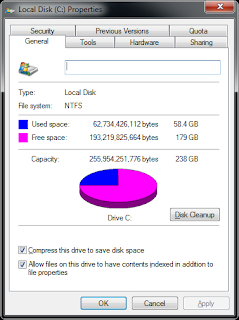
System speed is not only dependant upon CPU and RAM. If your hard drive is above 95% full, you will notice that your system hasn't been running at the fastest speed. This happens because Windows require empty space for swap files to increase in size and also as space for temporary files. It is imperative that the more cluttered and filled a hard drive is, the more difficult it is to read. To solve this issue, delete unnecessary data or move it to external storage devices.Repair protected Windows system files
As you use your computer, it is possible that one or more system files get damaged or get corrupted which might effect your system's performance in a negative way. Thus, it is important to check that all your system files are original and behaving as they should. The best way to check your operating system's files is through the System File Checker. To run the System File Checker, open Command Prompt as an Administrator and execute sfc /scannow. This command will check all your system files and if it finds that some of them are modified or corrupt, it will replace them with the original. This step can take anywhere between 5 to 15 minutes but is one that you should perform especially if your system has ever been infected by a virus.Disable unnecessary visual effects
1) Press Windows Key+R to launch the Run dialog box.
2) Execute sysdm.cpl.
3) Go to the Advanced tab in the following Window and click on Settings in the Performance section.
4) Then encircle Adjust for best performance. If you want to use visual styles and themes, check it (located at the very end of the list).
5) Click on Apply to apply the changes.
Disabling these visual effects could lead to a considerable improvement in your system's performance especially if you are on Windows 7 or Windows Vista and using the Aero interface without a graphic card.
Do not run multiple antivirus programs
Make sure that no more than one antivirus program is running on your PC. An antivirus's resident protection takes a lot of resources. So, having more than one antivirus program would bring about a significant reduction in your computer's speed.Disable sound schemes
Whenever you perform an action in Windows, a sound is played to indicate it. Although it leads to a better user experience, it also contributes towards slowing your PC down. To make your PC a lean work machine, you should disable these sounds. To disable these, open Sounds from the Control Panel or alternately type mmsys.cpl in the Run dialog box. Go to the Sound tab and select "No Sounds" from the Sounds scheme dropdown list and click Apply.Update Windows and make sure that you are using the latest drivers for your hardware
Having all the updates ensures that your computer is running the best possible version of your operating system and your hardware is being utilized by the best possible code. Also, an updated operating system makes you more secure against future intrusions by performance reducing malware.Use a Registry Cleaner to keep your Registry in good shape
The Windows Registry is a place which keeps information about all installed programs and active system files on your system. Over time, as you install and uninstall programs, the Registry can get filled with useless entries which might increase its size making it difficult to read. This happens because most uninstallers don't remove the program's Registry entries during an uninstall. Also, the larger the Registry is on your computer, the more time Windows will take to start.To solve this issue, use any free Registry cleaner to remove useless entries. Depending upon the number of entries in your Registry and its size, you might see a significant increase in your computer's performance.
Delete Temporary Files
Temporary files are stored in your computer as Windows operates. They are files that contain your recently accessed files list, log files, your internet history, form history, cookies and temporary internet files. Over time, the number of these files increases and cleaning them becomes important. You can use CCleaner (mentioned above) to clean them or the inbuilt Windows Disk Cleanup utility by executing cleanmgr.exe in the Rundialog box. You can also schedule a disk cleanup to ensure that it happens automatically.Disable Windows Search Indexing Service
Check Device Manager to look for hardware conflicts
Open Device Manager to see that all the connected hardware are functioning properly. If you find a hardware conflict, take the necessary steps to resolve it. If the conflict cannot be resolved, disconnect the problematic hardware until you find a solution.Change to High Performance power scheme
If you are running your computer on a battery and notice that it is running slow, change the power scheme to high performance to increase system speed. Keep in mind that it will increase the amount of power consumed by your computer. To change the power scheme, open Power Options from the Control Panel. You can directly search for Power Options in Windows 7, Windows 8 and Windows 8.1 from the Start Screen/Menu.Check if your computer is overheating
If your computer is overheating, then it is possible that it is causing your computer to run slowly. This is because most modern processors slow down when the computer is overheated to allow the computer to cool down.To prevent your computer from overheating, make sure that the cooling fan works properly and that there is no dust clogging the air vents as it will prevent air flow which will result in poor cooling. Clean your computer's case with a light brush and place it somewhere where it can be effectively cooled by air. If you use a laptop, a cooling pad might be of help.
Defragment your hard drive
When Windows stores a file on your hard drive, it does not look for a single place to store your file as a whole. Instead, it stores the fragments of the file randomly, i.e storing them at whatever empty space it can find the quickest. Due to this, the fragments of a single file can be scattered all across a hard disk. A hard drive that has many files distributed like this is called as fragmented. Naturally, this results in slower file access times because Windows needs to find all these pieces and put them together (something like a jigsaw puzzle) before the file can be accessed.This is what defragmentation corrects. When you defragment a hard drive, the scattered pieces of a file are put together and stored on the hard disk in continuous cells (assuming a hard disk to be made up of a large number of cells with each cell representing a particular storage space).
To defragment your hard drive, you can use the in-built Windows Disk Defragmenter utility. It can be searched on the Start Screen in Windows 8 & 8.1 and is located at Start>Programs>Accessories>System Tools in older versions of Windows.
Use ReadyBoost to increase the speed of your Windows computer
If you are running a computer that does not have enough RAM, using a flash drive with the ReadyBoost technique can and will give you significant improvement in speed. As with ReadyBoost, your flash drive becomes a cache that stores files that you might immediately require giving you faster access times than if those files had been stored on a hard disk.Keep in mind that ReadyBoost depends upon the condition of your flash drive and was intended to increase speeds of devices which were short on RAM. If you already have a sufficient amount of RAM, chances are that you might see very little to no improvement in speed by using it.
Reinstall Windows
This is one of the more drastic methods and should only be used if all the methods mentioned above fail to bring any significant increase in your computer's speed.If you haven't reinstalled Windows in a really long time, it is possible that because of constant use, the system has got bogged down with useless clutter in a way that no amount of tweaking will fix its condition. Then, reinstalling Windows is the only option.
Reinstalling Windows brings about a definite increase in speed but gives you a new PC without all your software and customization. Modifying it according to your needs will take a lot of time though but that is something you must sacrifice for a faster PC.
If you use Windows 8 or Windows 8.1, you can refresh your PC without affecting your installed apps and settings. To refresh your Windows 8 PC, open Update and Recovery by going to Change PC Settings from the Settings button that appears when you move your mouse pointer to the right side of your screen. Under it, click Recovery. Then under Refresh your PC without affecting files, click Get Started.



 Posts
Posts


